How to set up a simple continuous deployment workflow using GitHub Actions with AWS
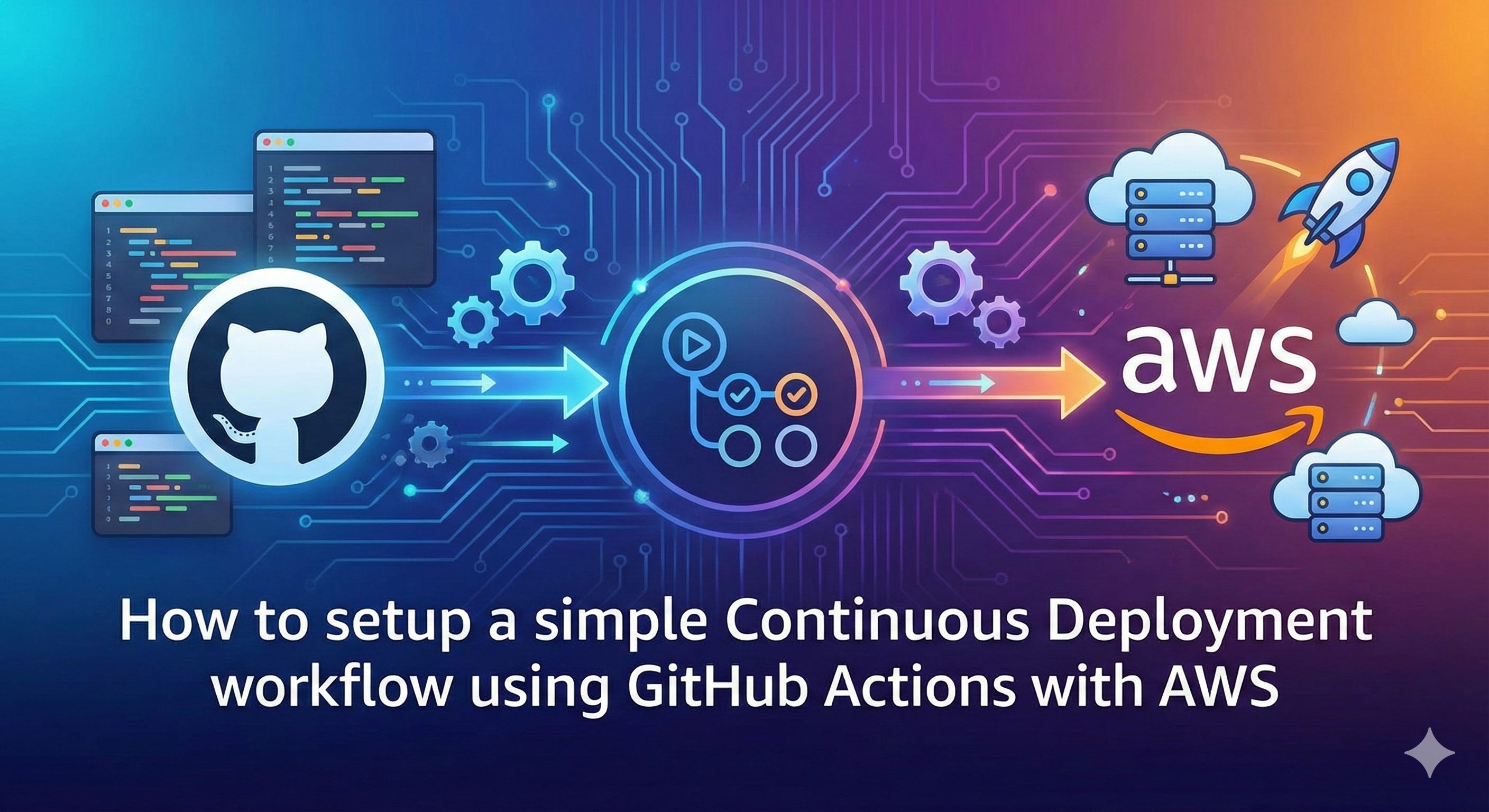
There are two stages in this deployment workflow, one is the setup of the cloud provider( your server) and another is the workflow logic itself. The logic itself is pretty much the same accross every provider with a little bit of change.
Let’s tackle the server setup first:
AWS
We are gonna need three things from ec2 service: host, user and ssh key. First create a ssh key in your own local machine using ssh-keygen:
ssh-keygen -t ed25519 -C “github-actions” -f ./github_deploy_key
You can name it anything you like but try to name it after your server and app to differentiate from others. This will produce two key files, one is public key and the other is private key. The public key file will have the file extension .pub.
In your ec2 server, login and add the public key to the ssh authorized keys list in ~/.ssh/authorized_keys file. Add it to the bottom.
Now goto your repository in github > settings > secrets > actions > New repository secrets. Add EC2_HOST with ipv4 address of the ec2 instance(login to aws consle and click on the instance, you will see the ipv4 address), add EC2_SSH_KEY with the generated private key from local machine. Add another one called **EC2_USER **with your ec2 server user account name(for new server it will be ec2-user most of time. If you want to create a new use sudo adduser username). Never use root user account.
Now we’re done with the server setup.
Workflow Configuration
The logic for deployment workflow is this: Trigger > Pull > Build > Restart.
This is our trigger code. When branches are merged into the main branch the workflow will get trigged.
on:
  push:
    branches: [ main ]
The workflow will automatically start a disposable virtual server on github not your server.
jobs:
  deploy:
    runs-on: ubuntu-latest
This code will download the repository code in the disposable virtual server. You can have this code in the file or not. For simple setup it’s not needed. When you need it: for running tests and if you have deploy script, you need to checkout the repo to run the script.
- name: Checkout code
  uses: actions/checkout@v3
And then it will open a secure tunnel to your server using the secrets we have provided in the github actions secrets.
- name: Deploy via SSH
  uses: appleboy/[email protected]
  with:
    host: ${{ secrets.EC2_HOST }}
    username: ${{ secrets.EC2_USER }}
    key: ${{ secrets.EC2_SSH_KEY }}
    port: 22
    command_timeout: 30m
    script: |
command timeout is to wait for the script commands to run for 30 minutes. After that it will timeout. If your server is in nodejs, you’re gonna need the nvm script command. Navigate to your repository in the server and then run git pull, clean insttall and then build the project and then restart your app.
script: |
    # 1. Environment Variables for amazon linux
    export NVM_DIR=”$HOME/.nvm”
    [ -s “$NVM_DIR/nvm.sh” ] && \. “$NVM_DIR/nvm.sh”
    # 2. Navigation
    cd /var/www/my-app
    # 3. Git Pull
    git pull origin main
    # 4. Install & Build
    npm ci
    npm run build
    npx pm2 restart all
This is most simple workflow if your app is just at the beginning. This workflow doesn’t address some problems like zero downtime, npm install can run out of memory, npm build on the server can slow down your server which can effect users in realtime.
However there is a level up version that uses: Trigger > Build > Push > Restart. In this way you don’t install or build anything on the server. The disposable virtual server from github handles installing, building the code during checkout step. And then it produces an artifact(dist) which can be run directly on the server. In the next article, I will write how to deploy code with pro workflow and zero downtime.